Mastering ADB : The Ultimate Powerhouse for Android App Testing
A comprehensive guide to mastering Android Debug Bridge (ADB). Learn how to set up your environment, essential commands for mobile testing, and advanced troubleshooting techniques to streamline your workflow.
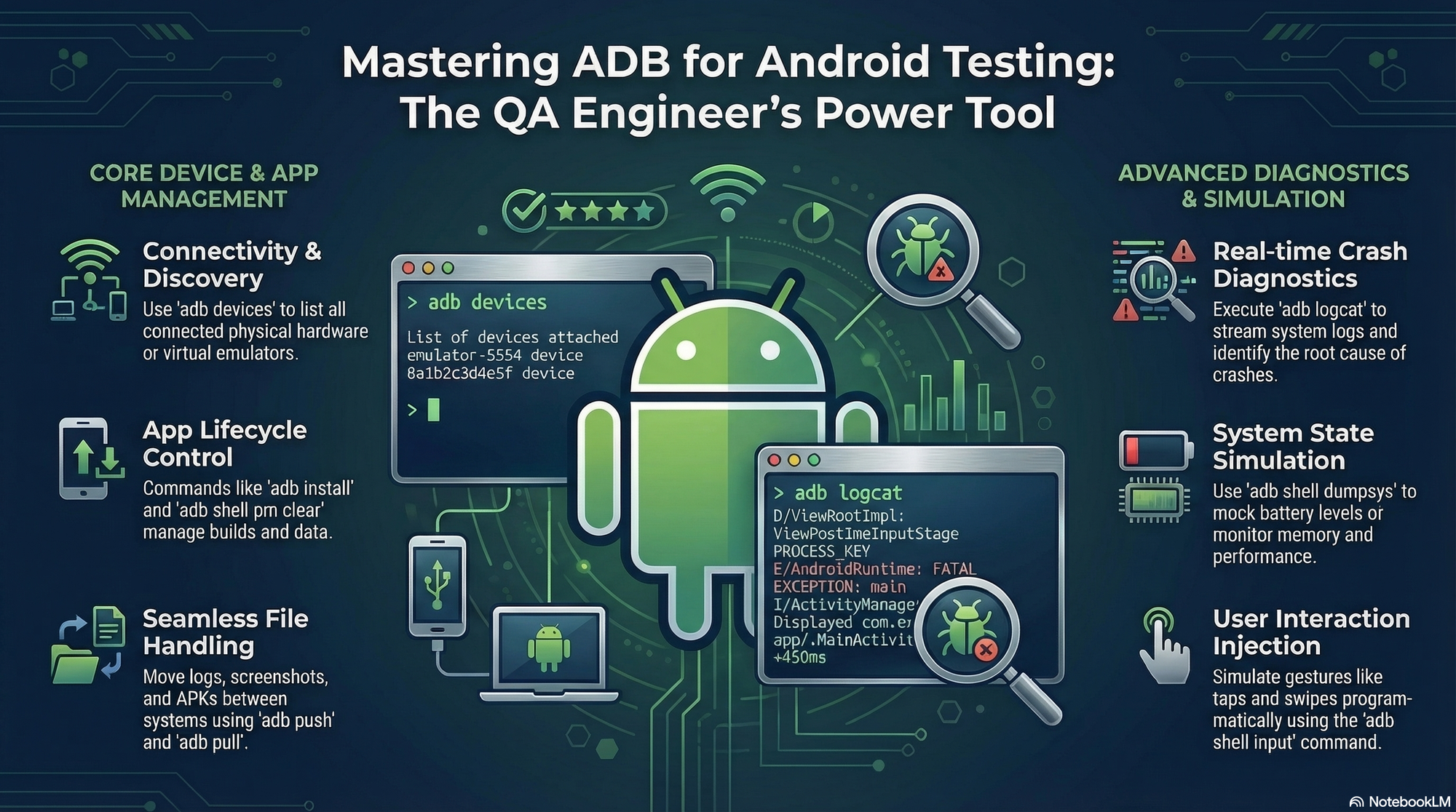
In the rapidly evolving world of mobile development, the Android Debug Bridge (ADB) remains a foundational tool for both developers and QA engineers in 2025 and beyond. It is a versatile command-line utility that allows you to communicate with an Android device or emulator directly from your terminal, enabling everything from simple app installations to complex performance monitoring.
Getting Started Enabling the Bridge
Before you can leverage the power of ADB, you must prepare your test device. This requires enabling Developer Options (usually by tapping the "Build Number" seven times in Settings) and toggling USB Debugging. For those who prefer a cable-free environment, devices running Android 11 or later now support Wireless Debugging, allowing you to pair and connect over a local network using a pairing code.
Essential Commands for Every Tester
ADB offers a rich set of hooks into nearly every layer of the Android stack. Here are the core categories every mobile tester should master :
- Device & App Management : Use adb devices to verify connections and adb install/uninstall to manage your application lifecycle
- File Handling : The adb pull and adb push commands are essential for transferring logs, database files, or media between your computer and the device
- Diagnostics and Logs : The most critical command for bug hunting is adb logcat, which streams real-time system logs to your console. For a comprehensive snapshot of the device state, adb bugreport generates a full dump of system information.
- User Interaction Simulation : You can simulate gestures without touching the device using adb shell input tap or adb shell input swipe, which is invaluable for automated scripting.
Stress Testing with the "Monkey"
One of the most powerful testing tools included with ADB is the UI/Application Exerciser Monkey. By running a command like
adb shell monkey -p your.package.name -v 500
you can send a pseudo-random stream of user events (clicks, touches, gestures) to your app. This "stress test" is an excellent way to find unhandled exceptions and crashes that might occur during unpredictable user behavior.
Advanced QA Workflows
While basic commands are great for manual testing, modern QA teams are scaling ADB for automation. Tools like Quash treat ADB as infrastructure, providing a resilient layer that handles multi-threaded execution, automatic retries for flaky connections, and structured logging across thousands of real devices.
Furthermore, for security enthusiasts, ADB is the gateway to using tools like Frida for SSL pinning bypass or MobSF for automated security analysis, ensuring your app is not only functional but secure.
Conclusion
ADB is more than just a terminal tool; it is the "Swiss Army Knife" of the Android ecosystem. Whether you are a manual tester capturing your first logcat or an automation engineer building complex pipelines, mastering ADB pays long-term dividends in shipping high-quality, 5-star apps.
Useful ADB Commands for Android Testing
Check Connected Devices
adb devicesThis commadn lists all connected Android devices and emulators.
List of devices attached
emulator-5554 device
R58N12345AB device
Install an Application
adb install app-debug.apkReinstall the app without removing existing data
adb install -r app-debug-apkUninstall an Application
adb uninstall com.example.myappPush a File to the Device
adb push testfile.txt /sdcard/Download/Pull a File from the Device
adb pull /sdcard/Download/log.txt ./log.txtView Device Logs
adb logcatFilter logs by tag
adb logcart | grep MyAppTagShow only error logs
adb logcat *:EList Installed Packages
adb shell pm list packagesClear Application Data
adb shell pm clear com.example.myapp